Dashboard
The first screen after you open SecLayer: protection status, service health and a live view of who is connected to your server.
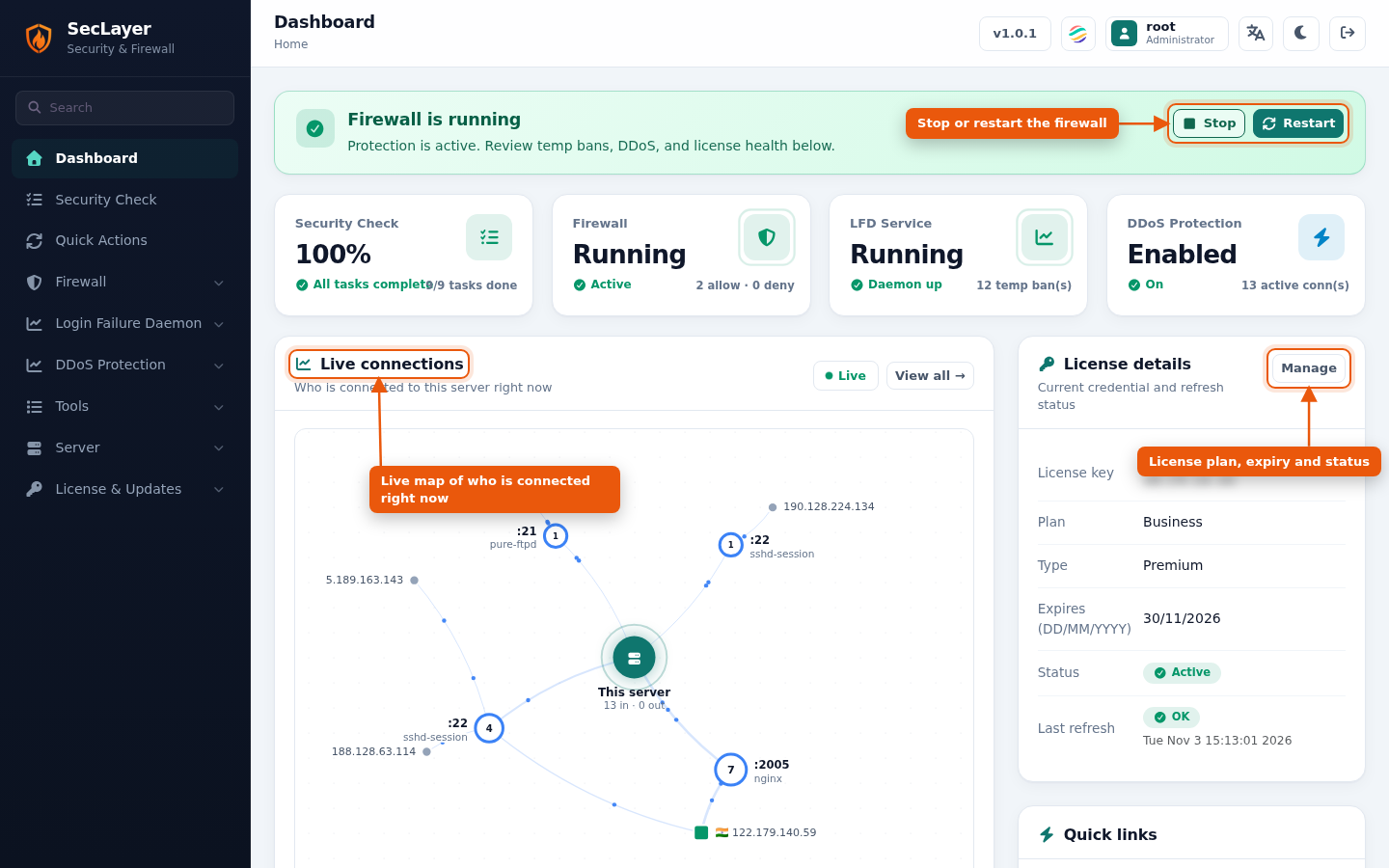
Status Banner
The banner at the top tells you whether the firewall is protecting the server and offers the next action:
- Firewall is running: Stop or Restart.
- Stopped: Start.
- Test mode: shows when test mode will switch the firewall off automatically, with a Disable test mode button.
- DDoS protection off: Enable DDoS protection.
- License expired: Manage license.
Status Tiles
- Security Check: percentage and tasks done (for example 9/9). Hover to see what is still open. See Security Check.
- Firewall: running state and number of allow and deny rules.
- LFD Service: daemon state and number of active temporary bans.
- DDoS Protection: enabled state and number of active connections.
Live Connections
A compact, animated connection map of the 10 busiest remote IPs. It refreshes every 10 seconds. Below the map are the legend and counts of incoming and outgoing connections, remote IPs and alerts. Click any node to open it on the full Active Connections page, or click View all.
License Details and Quick Links
License details shows the license key, plan, type, expiry, status and last refresh, with a Manage button. Quick links go straight to Firewall, Deny IPs, Allow IPs, Temp Bans, DDoS Config and Live Logs.
Header Controls
- Language: choose from 17 interface languages. The choice applies to the whole SecLayer interface. If none is chosen, the control panel's language is used.
- Dark / Light: switch the colour theme. The choice is remembered in your browser. By default it follows your system preference.